
How to use GHL automations with Edpay
When using Edpay with GoHighLevel (GHL), you need to use the Automations feature in GHL. You’ll need two automations:
- Activation automation – gives the customer access to the content they purchased.
- Cancellation automation – removes access if the customer gets a refund or unsubscribes.
How to create a new Automation in GHL (Workflow)
- Go to Automation in the menu and click Create Workflow.
- Select Inbound Webhook as the trigger:
- Click Add new trigger.
- Select Inbound Webhook from the list.
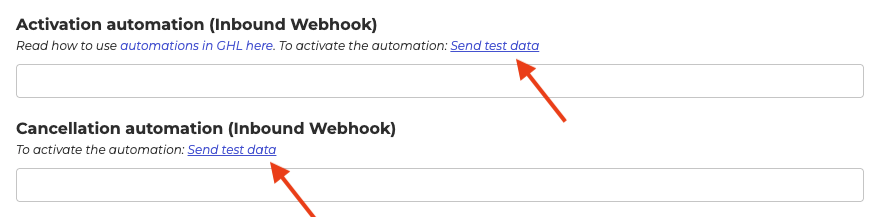
- In the Webhook settings, you’ll see a URL. Copy this and paste it into the Activation/Cancellation Automation field in Edpay.

- Click the Send test data link in Edpay to send sample data to GHL.
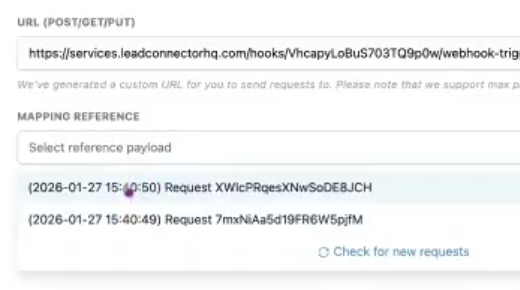
- In GHL, open the Mapping reference menu, select the most recent request, and press Save.
- Add a Create/Update Contact action in the Workflow. Use the sample data to match fields:
- Match the “email” field from the webhook to the “Email” field in GHL.
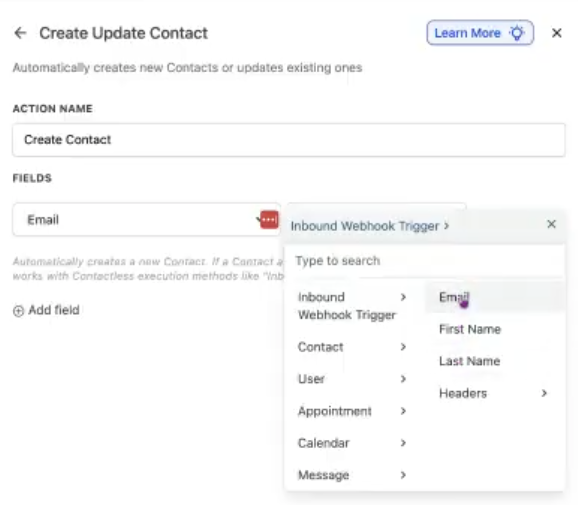
- Repeat for First name and Last name.
- Match the “email” field from the webhook to the “Email” field in GHL.
- Add any final steps you need – for example:
- Assign the correct product
- Add tags
- Start an email sequence, etc.
About the Cancellation Automation
As mentioned, you’ll need a second automation to remove access if a customer cancels or is refunded.
If cancellations aren’t common for you, you can create just one universal cancellation automation and use it for all offers. This saves time when setting up new offers, since they can all connect to the same cancellation workflow in GHL.
If you have any questions, please send us an email to [email protected]
